The Circle Method
The circle method takes the following format
Circle (x1, y1), radius, color
That draws a circle centered at (x1, y1), with a certain radius and a certain border color. For example, the procedure
Circle (400, 400), 500, VbRed
draws a circle centered at (400, 400) with a radius of 500 twips and a red border.
---------
example
uses a common dialog box here to perform some of the jobs which could be difficult to perform . In this program, a user have to fill in all the coordinates and choose a color before he can proceed to draw the required shape. If one forget to fill in the coordinates or choose a color, he will be asked to do so.
Private Sub Command2_Click()
x1 = Text1.Text
y1 = Text2.Text
x2 = Text3.Text
y2 = Text4.Text
Picture1.Line (x1, y1)-(x2, y2), color, B
End Sub
Private Sub Command3_Click()
CommonDialog1.Flags = &H1&
CommonDialog1.ShowColor
color = CommonDialog1.color
End Sub
Private Sub Command4_Click()
On Error GoTo addvalues
x3 = Text5.Text
y3 = Text6.Text
r = Text7.Text
Picture1.Circle (x3, y3), r, color
Exit Sub
addvalues:
MsgBox ("Please fill in the coordinates ,the radius and the color")
End Sub
Private Sub Command5_Click()
Picture1.Cls
End Sub
Private Sub Command6_Click()
x1 = Text1.Text
y1 = Text2.Text
x2 = Text3.Text
y2 = Text4.Text
Picture1.Line (x1, y1)-(x2, y2), color, BF
End Sub
Wednesday, May 27, 2009

PSet, Line and Circle Drawing Methods
PSet, Line and Circle Drawing Methods
Other than using the line and shape controls to draw graphics on the form, you can also use the Pset, Line and Circle methods to draw graphics on the form.
(a) The Pset Method
The Pset method draw a dot on the screen, it takes the format
Pset (x , y ), color
(x,y) is the coordinates of the point and color is its color. To specify the color, you can use the color codes or the standard VB color constant such as VbRed, VbBlue, VbGeen and etc. For example, Pset(100,200), VbRed will display a red dot at the (100,200) coordinates.
The Pset method can also be used to draw a straight line on the form. The procedure is
For x= a to b
Pset(x,x)
Next x
This procedure will draw a line starting from the point (a,a) and to the point (b,b). For example, the following procedure will draw a magenta line from the point (0,0) to the point (1000,1000).
For x= 0 to 100
Pset(x,x) , vbMagenta
Next x
Other than using the line and shape controls to draw graphics on the form, you can also use the Pset, Line and Circle methods to draw graphics on the form.
(a) The Pset Method
The Pset method draw a dot on the screen, it takes the format
Pset (x , y ), color
(x,y) is the coordinates of the point and color is its color. To specify the color, you can use the color codes or the standard VB color constant such as VbRed, VbBlue, VbGeen and etc. For example, Pset(100,200), VbRed will display a red dot at the (100,200) coordinates.
The Pset method can also be used to draw a straight line on the form. The procedure is
For x= a to b
Pset(x,x)
Next x
This procedure will draw a line starting from the point (a,a) and to the point (b,b). For example, the following procedure will draw a magenta line from the point (0,0) to the point (1000,1000).
For x= 0 to 100
Pset(x,x) , vbMagenta
Next x
In this example, each time you click on the ‘change pictures’ button as shown
In this example, each time you click on the ‘change pictures’ button as shown in Figure 19.2, you will be able to see three images loaded into the image boxes. This program uses the Rnd function to generate random integers and then uses the LoadPicture method to load different pictures into the image boxes using the If…Then…Statements based on the random numbers generated. The output is shown in Figure below
Dim a, b, c As Integer
Private Sub Command1_Click ()
Randomize Timer
a = 3 + Int(Rnd * 3)
b = 3 + Int(Rnd * 3)
c = 3 + Int(Rnd * 3)
If a = 3 Then
Image1(0).Picture = LoadPicture("C:\My Folder\VB program\Images\grape.gif")
End If
If a = 4 Then
Image1(0).Picture = LoadPicture("C:\My Folder\VB program\Images\cherry.gif")
End If
If a = 5 Then
Image1(0).Picture = LoadPicture("C:\My Folder\VB program\Images\orange.gif")
End If
If b = 3 Then
Image1(1).Picture = LoadPicture("C:\My Folder\VB program\Images\grape.gif")
End If
If b = 4 Then
Image1(1).Picture = LoadPicture("C:\My Folder\VB program\Images\cherry.gif")
End If
If b = 5 Then
Image1(1).Picture = LoadPicture("C:\My Folder\VB program\Images\orange.gif")
End If
If c = 3 Then
Image1(2).Picture = LoadPicture("C:\My Folder\VB program\Images\grape.gif")
End If
If c = 4 Then
Image1(2).Picture = LoadPicture("C:\My Folder\VB program\Images\cherry.gif")
End If
If c = 5 Then
Image1(2).Picture = LoadPicture("C:\My Folder\VB program\Images\orange.gif")
End If
End Sub

Dim a, b, c As Integer
Private Sub Command1_Click ()
Randomize Timer
a = 3 + Int(Rnd * 3)
b = 3 + Int(Rnd * 3)
c = 3 + Int(Rnd * 3)
If a = 3 Then
Image1(0).Picture = LoadPicture("C:\My Folder\VB program\Images\grape.gif")
End If
If a = 4 Then
Image1(0).Picture = LoadPicture("C:\My Folder\VB program\Images\cherry.gif")
End If
If a = 5 Then
Image1(0).Picture = LoadPicture("C:\My Folder\VB program\Images\orange.gif")
End If
If b = 3 Then
Image1(1).Picture = LoadPicture("C:\My Folder\VB program\Images\grape.gif")
End If
If b = 4 Then
Image1(1).Picture = LoadPicture("C:\My Folder\VB program\Images\cherry.gif")
End If
If b = 5 Then
Image1(1).Picture = LoadPicture("C:\My Folder\VB program\Images\orange.gif")
End If
If c = 3 Then
Image1(2).Picture = LoadPicture("C:\My Folder\VB program\Images\grape.gif")
End If
If c = 4 Then
Image1(2).Picture = LoadPicture("C:\My Folder\VB program\Images\cherry.gif")
End If
If c = 5 Then
Image1(2).Picture = LoadPicture("C:\My Folder\VB program\Images\orange.gif")
End If
End Sub
The Image Box and the Picture Box
The Image Box and the Picture Box
Using the line and shape controls to draw graphics will only enable you to create a simple design. In order to improve the look of the interface, you need to put in images and pictures of your own. Fortunately, there are two very powerful graphics tools you can use in Visual Basic which are the image box and the picture box.
To load a picture or image into an image box or a picture box, you can click on the picture property in the properties window and a dialog box will appear which will prompt the user to select a certain picture file. You can also load a picture at runtime by using the LoadPictrure ( ) method. The syntax is
Image1.Picture= LoadPicture("C:\path name\picture file name") or
picture1.Picture= LoadPicture("C:\path name\picture name")
For example, the following statement will load the grape.gif picture into the image box.
Image1.Picture= LoadPicture("C:\My Folder\VB program\Images\grape.gif")
Using the line and shape controls to draw graphics will only enable you to create a simple design. In order to improve the look of the interface, you need to put in images and pictures of your own. Fortunately, there are two very powerful graphics tools you can use in Visual Basic which are the image box and the picture box.
To load a picture or image into an image box or a picture box, you can click on the picture property in the properties window and a dialog box will appear which will prompt the user to select a certain picture file. You can also load a picture at runtime by using the LoadPictrure ( ) method. The syntax is
Image1.Picture= LoadPicture("C:\path name\picture file name") or
picture1.Picture= LoadPicture("C:\path name\picture name")
For example, the following statement will load the grape.gif picture into the image box.
Image1.Picture= LoadPicture("C:\My Folder\VB program\Images\grape.gif")
The Code
The Code
Private Sub Form_Load()
List1.AddItem "Rectangle"
List1.AddItem "Square"
List1.AddItem "Oval"
List1.AddItem "Circle"
List1.AddItem "Rounded Rectangle"
List1.AddItem "Rounded Square"
End Sub
Private Sub List1_Click()
Select Case List1.ListIndex
Case 0
Shape1.Shape = 0
Case 1
Shape1.Shape = 1
Case 2
Shape1.Shape = 2
Case 3
Shape1.Shape = 3
Case 4
Shape1.Shape = 4
Case 5
Shape1.Shape = 5
End Select
End Sub
Private Sub Command1_Click()
CommonDialog1.Flags = &H1&
CommonDialog1.ShowColor
Shape1.BackColor = CommonDialog1.Color
End Sub
Private Sub Form_Load()
List1.AddItem "Rectangle"
List1.AddItem "Square"
List1.AddItem "Oval"
List1.AddItem "Circle"
List1.AddItem "Rounded Rectangle"
List1.AddItem "Rounded Square"
End Sub
Private Sub List1_Click()
Select Case List1.ListIndex
Case 0
Shape1.Shape = 0
Case 1
Shape1.Shape = 1
Case 2
Shape1.Shape = 2
Case 3
Shape1.Shape = 3
Case 4
Shape1.Shape = 4
Case 5
Shape1.Shape = 5
End Select
End Sub
Private Sub Command1_Click()
CommonDialog1.Flags = &H1&
CommonDialog1.ShowColor
Shape1.BackColor = CommonDialog1.Color
End Sub
The program in this example allows the user to change the shape by selecting a particular shape from a list of options from a list box
Example
The program in this example allows the user to change the shape by selecting a particular shape from a list of options from a list box, as well as changing its color through a common dialog box.
The objects to be inserted in the form are a list box, a command button, a shape control and a common dialog box. The common dialog box can be inserted by clicking on ‘project’ on the menu and then select the Microsoft Common Dialog Control 6.0 by clicking the check box. After that, the Microsoft Common Dialog Control 6.0 will appear in the toolbox; and you can drag it into the form. The list of items can be added to the list box through the AddItem method. The procedure for the common dialog box to present the standard colors is as follows:
CommonDialog1.Flags = &H1&
CommonDialog1.ShowColor
Shape1.BackColor = CommonDialog1.Color
The last line will change the background color of the shape by clicking on a particular color on the common dialog box as shown in the Figure below:
The program in this example allows the user to change the shape by selecting a particular shape from a list of options from a list box, as well as changing its color through a common dialog box.
The objects to be inserted in the form are a list box, a command button, a shape control and a common dialog box. The common dialog box can be inserted by clicking on ‘project’ on the menu and then select the Microsoft Common Dialog Control 6.0 by clicking the check box. After that, the Microsoft Common Dialog Control 6.0 will appear in the toolbox; and you can drag it into the form. The list of items can be added to the list box through the AddItem method. The procedure for the common dialog box to present the standard colors is as follows:
CommonDialog1.Flags = &H1&
CommonDialog1.ShowColor
Shape1.BackColor = CommonDialog1.Color
The last line will change the background color of the shape by clicking on a particular color on the common dialog box as shown in the Figure below:
vb 6 The line and Shape controls
To draw a straight line, just click on the line control and then use your mouse to draw the line on the form. After drawing the line, you can then change its color, width and style using the BorderColor, BorderWidth and BorderStyle properties.
Similarly, to draw a shape, just click on the shape control and draw the shape on the form. The default shape is a rectangle, with the shape property set at 0. You can change the shape to square, oval, circle and rounded rectangle by changing the shape property’s value to 1, 2, 3 4, and 5 respectively. In addition, you can change its background color using the BackColor property, its border style using the BorderStyle property, its border color using the BorderColor pproperty as well its border width using the BorderWidth property.
Similarly, to draw a shape, just click on the shape control and draw the shape on the form. The default shape is a rectangle, with the shape property set at 0. You can change the shape to square, oval, circle and rounded rectangle by changing the shape property’s value to 1, 2, 3 4, and 5 respectively. In addition, you can change its background color using the BackColor property, its border style using the BorderStyle property, its border color using the BorderColor pproperty as well its border width using the BorderWidth property.
Graphics is a very important part of visual basic programming
Graphics is a very important part of visual basic programming as an attractive interface will be appealing to the users. In the old BASIC, drawing and designing graphics are considered as difficult jobs, as they have to be programmed line by line in a text-based environment. However, in Visual Basic, these jobs have been made easy. There are four basic controls in VB that you can use to draw graphics on your form: the line control, the shape control, the image box and the picture box
Sample Program: Reading file
Reading a file
To read a file created in section 17.2, you can use the input # statement. However, we can only read the file according to the format when it was written. You have to open the file according to its file number and the variable that hold the data. We also need to declare the variable using the DIM command.
Sample Program: Reading file
Private Sub Reading_Click()
Dim variable1 As String
Open "c:\My Documents\sample.txt" For Input As #1
Input #1, variable1
Text1.Text = variable1
Close #1
End Sub
* This program will open the sample.txt file and display its contents in the Text1 textbox.
To read a file created in section 17.2, you can use the input # statement. However, we can only read the file according to the format when it was written. You have to open the file according to its file number and the variable that hold the data. We also need to declare the variable using the DIM command.
Sample Program: Reading file
Private Sub Reading_Click()
Dim variable1 As String
Open "c:\My Documents\sample.txt" For Input As #1
Input #1, variable1
Text1.Text = variable1
Close #1
End Sub
* This program will open the sample.txt file and display its contents in the Text1 textbox.
Sample Program : Creating a text file
Creating files To create a file , we use the following command
Open "fileName" For Output As #fileNumber
Each file created must have a file name and a file number for identification. As for the file name, you must also specify the path where the file will reside.
Examples:
Open "c:\My Documents\sample.txt" For Output As #1
will create a text file by the name of sample.txt in My Document folder. The accompany file number is 1. If you wish to create and save the file in A drive, simply change the path, as follows"
Open "A:\sample.txt" For Output As #1
If you wish to create a HTML file , simply change the extension to .html
Open "c:\My Documents\sample.html" For Output As # 2
Sample Program : Creating a text file
Private Sub create_Click()
Dim intMsg As String
Dim StudentName As String
Open "c:\My Documents\sample.txt" For Output As #1
intMsg = MsgBox("File sample.txt opened")
StudentName = InputBox("Enter the student Name")
Print #1, StudentName
intMsg = MsgBox("Writing a" & StudentName & " to sample.txt ")
Close #1
intMsg = MsgBox("File sample.txt closed")
End Sub
* The above program will create a file sample.txt in the My Documents' folder and ready to receive input from users. Any data input by users will be saved in this text file.
Open "fileName" For Output As #fileNumber
Each file created must have a file name and a file number for identification. As for the file name, you must also specify the path where the file will reside.
Examples:
Open "c:\My Documents\sample.txt" For Output As #1
will create a text file by the name of sample.txt in My Document folder. The accompany file number is 1. If you wish to create and save the file in A drive, simply change the path, as follows"
Open "A:\sample.txt" For Output As #1
If you wish to create a HTML file , simply change the extension to .html
Open "c:\My Documents\sample.html" For Output As # 2
Sample Program : Creating a text file
Private Sub create_Click()
Dim intMsg As String
Dim StudentName As String
Open "c:\My Documents\sample.txt" For Output As #1
intMsg = MsgBox("File sample.txt opened")
StudentName = InputBox("Enter the student Name")
Print #1, StudentName
intMsg = MsgBox("Writing a" & StudentName & " to sample.txt ")
Close #1
intMsg = MsgBox("File sample.txt closed")
End Sub
* The above program will create a file sample.txt in the My Documents' folder and ready to receive input from users. Any data input by users will be saved in this text file.
Working with Files
Up until lesson we are only creating programs that could accept data at runtime, when the program is terminated, the data also disappear. Is it possible to save data accepted by a VB program into a storage device, such as a hard disk or diskette, or even CDRW? The answer is possible. In this chapter, we will learn how to create files by writing them into a storage device and then retrieve the data by reading the contents of the files using a customized VB program.
Sample Programs use Array
Sample Programs
(i) The code
Dim studentName(10) As String
Dim num As Integer
Private Sub addName()
For num = 1 To 10
studentName(num) = InputBox("Enter the student name", "Enter Name", "", 1500, 4500)
If studentName(num) <> "" Then
Form1.Print studentName(num)
Else
End
End If
Next
End Sub
The above program accepts data entry through an input box and displays the entries in the form itself. As you can see, this program will only allows a user to enter 10 names each time he click on the start button.
The Code
Dim studentName(10) As String
Dim num As Integer
Private Sub addName( )
For num = 1 To 10
studentName(num) = InputBox("Enter the student name")
List1.AddItem studentName(num)
Next
End Sub
Private Sub Start_Click()
addName
End Sub
The above program accepts data entries through an InputBox and displays the items in a list box.
(i) The code
Dim studentName(10) As String
Dim num As Integer
Private Sub addName()
For num = 1 To 10
studentName(num) = InputBox("Enter the student name", "Enter Name", "", 1500, 4500)
If studentName(num) <> "" Then
Form1.Print studentName(num)
Else
End
End If
Next
End Sub
The above program accepts data entry through an input box and displays the entries in the form itself. As you can see, this program will only allows a user to enter 10 names each time he click on the start button.
The Code
Dim studentName(10) As String
Dim num As Integer
Private Sub addName( )
For num = 1 To 10
studentName(num) = InputBox("Enter the student name")
List1.AddItem studentName(num)
Next
End Sub
Private Sub Start_Click()
addName
End Sub
The above program accepts data entries through an InputBox and displays the items in a list box.
Example declares an array that consists of the first element
Example
Dim Count(100 to 500) as Integer
declares an array that consists of the first element starting from Count(100) and ends at Count(500)
The general format to declare a two dimensional array is as follow:
Dim ArrayName(Sub1,Sub2) as dataType
Example
Dim StudentName(10,10) will declare a 10x10 table make up of 100 students' Names, starting with StudentName(1,1) and end with StudentName(10,10).
Dim Count(100 to 500) as Integer
declares an array that consists of the first element starting from Count(100) and ends at Count(500)
The general format to declare a two dimensional array is as follow:
Dim ArrayName(Sub1,Sub2) as dataType
Example
Dim StudentName(10,10) will declare a 10x10 table make up of 100 students' Names, starting with StudentName(1,1) and end with StudentName(10,10).
Declaring Arrays in vb 6 : general format to declare a one dimensional array
We could use Public or Dim statement to declare an array just as the way we declare a single variable. The Public statement declares an array that can be used throughout an application while the Dim statement declare an array that could be used only in a local procedure.
The general format to declare a one dimensional array is as follow:
Dim arrayName(subs) as dataType
where subs indicates the last subscript in the array.
Example
Dim CusName(10) as String
will declare an array that consists of 10 elements if the statement Option Base 1 appear in the declaration area, starting from CusName(1) to CusName(10). Otherwise, there will be 11 elements in the array starting from CusName(0) through to CusName(10)
CusName(1) CusName(2) CusName(3) CusName(4) CusName(5) CusName(6) CusName(7) CusName(8) CusName(9) CusName(10)
The general format to declare a one dimensional array is as follow:
Dim arrayName(subs) as dataType
where subs indicates the last subscript in the array.
Example
Dim CusName(10) as String
will declare an array that consists of 10 elements if the statement Option Base 1 appear in the declaration area, starting from CusName(1) to CusName(10). Otherwise, there will be 11 elements in the array starting from CusName(0) through to CusName(10)
CusName(1) CusName(2) CusName(3) CusName(4) CusName(5) CusName(6) CusName(7) CusName(8) CusName(9) CusName(10)
Dimension of an Array
An array can be one dimensional or multidimensional. One dimensional array is like a list of items or a table that consists of one row of items or one column of items. A twodimensional array will be a table of items that make up of rows and columns. While the format for a one dimensional array is ArrayName(x), the format for a two dimensional array is ArrayName(x,y) while a three dimensional array is ArrayName(x,y,z) . Normally it is sufficient to use one dimensional and two dimensional array ,you only need to use higher dimensional arrays if you need with engineering problems or even some accounting problems.Let me illustrates the the arrays with tables.
One dimensional Array
Student Name Name(1) Name(2) Name(3) Name(4) Name(5) Name(6)
Two Dimensional Array
Name(1,1) Name(1,2) Name(1,3) Name(1,4)
Name(2,1) Name(2,2) Name(2,3) Name(2,4)
Name(3,1) Name(3,2) Name(3,3) Name(3,4)
One dimensional Array
Student Name Name(1) Name(2) Name(3) Name(4) Name(5) Name(6)
Two Dimensional Array
Name(1,1) Name(1,2) Name(1,3) Name(1,4)
Name(2,1) Name(2,2) Name(2,3) Name(2,4)
Name(3,1) Name(3,2) Name(3,3) Name(3,4)
Introduction to Arrays in visual basic
Introduction to Arrays
By definition, an array is a list of variables, all with the same data type and name. When we work with a single item, we only need to use one variable. However, if we have a list of items which are of similar type to deal with, we need to declare an array of variables instead of using a variable for each item. For example, if we need to enter one hundred names, we might have difficulty in declaring 100 different names, this is a waste of time and efforts. So, instead of declaring one hundred different variables, we need to declare only one array. We differentiate each item in the array by using subscript, the index value of each item, for example name(1), name(2),name(3) .......etc. , which will make declaring variables streamline and much systematic.
By definition, an array is a list of variables, all with the same data type and name. When we work with a single item, we only need to use one variable. However, if we have a list of items which are of similar type to deal with, we need to declare an array of variables instead of using a variable for each item. For example, if we need to enter one hundred names, we might have difficulty in declaring 100 different names, this is a waste of time and efforts. So, instead of declaring one hundred different variables, we need to declare only one array. We differentiate each item in the array by using subscript, the index value of each item, for example name(1), name(2),name(3) .......etc. , which will make declaring variables streamline and much systematic.
Commissions Payment in VBA when a salesman attain a sale volume
when a salesman attain a sale volume of $6000, he will be paid $6000x15%=$720.00. A visual basic function to calculate the commissions can be written as follows:
Function Comm(Sales_V As Variant) as Variant
If Sales_V <500 Then
Comm=Sales_V*0.03
Elseif Sales_V>=500 and Sales_V<1000 Then
Comm=Sales_V*0.06
Elseif Sales_V>=1000 and Sales_V<2000 Then
Comm=Sales_V*0.09
Elseif Sales_V>=200 and Sales_V<5000 Then
Comm=Sales_V*0.12
Elseif Sales_V>=5000 Then
Comm=Sales_V*0.15
End If
End Function
Function Comm(Sales_V As Variant) as Variant
If Sales_V <500 Then
Comm=Sales_V*0.03
Elseif Sales_V>=500 and Sales_V<1000 Then
Comm=Sales_V*0.06
Elseif Sales_V>=1000 and Sales_V<2000 Then
Comm=Sales_V*0.09
Elseif Sales_V>=200 and Sales_V<5000 Then
Comm=Sales_V*0.12
Elseif Sales_V>=5000 Then
Comm=Sales_V*0.15
End If
End Function
Need to Creating VBA Functions For MS Excel
The Needs to Create VBA Functions in MS-Excel
You can create your own functions to supplement the built-in functions in Microsoft Excel spreadsheet, which are quite limited in some aspects. These user-defined functions are also called Visual Basic for Applications functions, or simply VBA functions. They are very useful and powerful if you know how to program them properly. One main reason we need to create user defined functions is to enable us to customize our spreadsheet environment for individual needs. For example, we might need a function that could calculate commissions payment based on the sales volume, which is quite difficult if not impossible by using the built-in functions alone. The code for VBA is illustrated on the right.
You can create your own functions to supplement the built-in functions in Microsoft Excel spreadsheet, which are quite limited in some aspects. These user-defined functions are also called Visual Basic for Applications functions, or simply VBA functions. They are very useful and powerful if you know how to program them properly. One main reason we need to create user defined functions is to enable us to customize our spreadsheet environment for individual needs. For example, we might need a function that could calculate commissions payment based on the sales volume, which is quite difficult if not impossible by using the built-in functions alone. The code for VBA is illustrated on the right.
Saturday, May 23, 2009
Creating Your Own Function
The general format of a function is as follows:
Public Function functionName (Arg As dataType,..........) As dataType
or
Private Function functionName (Arg As dataType,..........) As dataType
* Public indicates that the function is applicable to the whole project and
Private indicates that the function is only applicable to a certain module or procedure.
Example
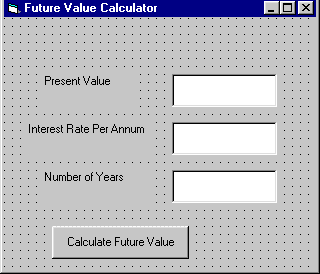
In this example, a user can calculate the future value of a certain amount of money he has today based on the interest rate and the number of years from now, supposing he will invest this amount of money somewhere .The calculation is based on the compound interest rate.
The code
Public Function FV(PV As Variant, i As Variant, n As Variant) As Variant
'Formula to calculate Future Value(FV)
'PV denotes Present Value
FV = PV * (1 + i / 100) ^ n
End Function
Private Sub compute_Click()
'This procedure will calculate Future Value
Dim FutureVal As Variant
Dim PresentVal As Variant
Dim interest As Variant
Dim period As Variant
PresentVal = PV.Text
interest = rate.Text
period = years.Text
'calling the funciton
FutureVal = FV(PresentVal, interest, period)
MsgBox ("The Future Value is " & FutureVal)
End Sub
Public Function functionName (Arg As dataType,..........) As dataType
or
Private Function functionName (Arg As dataType,..........) As dataType
* Public indicates that the function is applicable to the whole project and
Private indicates that the function is only applicable to a certain module or procedure.
Example
In this example, a user can calculate the future value of a certain amount of money he has today based on the interest rate and the number of years from now, supposing he will invest this amount of money somewhere .The calculation is based on the compound interest rate.
The code
Public Function FV(PV As Variant, i As Variant, n As Variant) As Variant
'Formula to calculate Future Value(FV)
'PV denotes Present Value
FV = PV * (1 + i / 100) ^ n
End Function
Private Sub compute_Click()
'This procedure will calculate Future Value
Dim FutureVal As Variant
Dim PresentVal As Variant
Dim interest As Variant
Dim period As Variant
PresentVal = PV.Text
interest = rate.Text
period = years.Text
'calling the funciton
FutureVal = FV(PresentVal, interest, period)
MsgBox ("The Future Value is " & FutureVal)
End Sub
Creating User-Defined Functions Example program will automatically compute
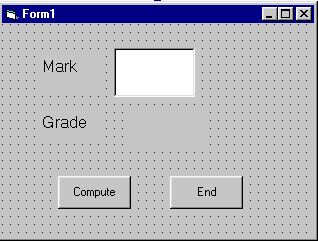
The following program will automatically compute examination grades based on the marks that a student obtained. The code is shown on the right.
The Code
Public Function grade(mark As Variant) As String
Select Case mark
Case Is >= 80
grade = "A"
Case Is >= 70
grade = "B"
Case Is >= 60
grade = "C"
Case Is >= 50
grade = "D"
Case Is >= 40
grade = "E"
Case Else
grade = "F"
End Select
End Function
Private Sub compute_Click()
grading.Caption = grade(mark)
End Sub
The Code
Public Function grade(mark As Variant) As String
Select Case mark
Case Is >= 80
grade = "A"
Case Is >= 70
grade = "B"
Case Is >= 60
grade = "C"
Case Is >= 50
grade = "D"
Case Is >= 40
grade = "E"
Case Else
grade = "F"
End Select
End Function
Private Sub compute_Click()
grading.Caption = grade(mark)
End Sub
Wednesday, May 20, 2009
String Manipulation Functions how to use some of the string manipulation function
In this lesson, we will learn how to use some of the string manipulation function such as Len, Right, Left, Mid, Trim, Ltrim, Rtrim, Ucase, Lcase, Instr, Val, Str ,Chr and Asc.
The Len Function
The length function returns an integer value which is the length of a phrase or a sentence, including the empty spaces. The format is
Len (“Phrase”)
For example,
Len (VisualBasic) = 11 and Len (welcome to VB tutorial) = 22
The Len function can also return the number of digits or memory locations of a number that is stored in the computer. For example,
Private sub Form_Activate ( )
X=sqr (16)
Y=1234
Z#=10#
Print Len(x), Len(y), and Len (z)
End Sub
The Len Function
The length function returns an integer value which is the length of a phrase or a sentence, including the empty spaces. The format is
Len (“Phrase”)
For example,
Len (VisualBasic) = 11 and Len (welcome to VB tutorial) = 22
The Len function can also return the number of digits or memory locations of a number that is stored in the computer. For example,
Private sub Form_Activate ( )
X=sqr (16)
Y=1234
Z#=10#
Print Len(x), Len(y), and Len (z)
End Sub
The Format function
The Format function is a very powerful formatting function which can display the numeric values in various forms. There are two types of Format function, one of them is the built-in or predefined format while another one can be defined by the users.
(i) The format of the predefined Format function is
Format (n, “style argument”)
Example
Private Sub Form_Activate()
Print Format (8972.234, "General Number")
Print Format (8972.2, "Fixed")
Print Format (6648972.265, "Standard")
Print Format (6648972.265, "Currency")
Print Format (0.56324, "Percent")
End Sub
(i) The format of the predefined Format function is
Format (n, “style argument”)
Example
Private Sub Form_Activate()
Print Format (8972.234, "General Number")
Print Format (8972.2, "Fixed")
Print Format (6648972.265, "Standard")
Print Format (6648972.265, "Currency")
Print Format (0.56324, "Percent")
End Sub
The Space function
The Space function
The Space function is very closely linked to the Tab function. However, there is a minor difference. While Tab (n) means the item is placed n spaces from the left border of the screen, the Space function specifies the number of spaces between two consecutive items. For example, the procedure
Example
Private Sub Form_Activate()
Print "Visual"; Space(10); "Basic"
End Sub
Means that the words Visual and Basic will be separated by 10 spaces
Formatting output is a very important part of programming
Formatting output is a very important part of programming so that the data can be presented systematically and clearly to the users. Data in the previous lesson were presented fairly systematically through the use of commas and some of the functions like Int, Fix and Round. However, to have better control of the output format, we can use a number of formatting functions in Visual basic.
The three most common formatting functions in VB are Tab, Space, and Format
(i) The Tab function
Tab (n); x
The item x will be displayed at a position that is n spaces from the left border of the output form. There must be a semicolon in between Tab and the items you intend to display (VB will actually do it for you automatically).
Example
Private Sub Form_Activate
Print "I"; Tab(5); "like"; Tab(10); "to"; Tab(15); "learn"; Tab(20); "VB"
Print
Print Tab(10); "I"; Tab(15); "like"; Tab(20); "to"; Tab(25); "learn"; Tab(20); "VB"
Print
Print Tab(15); "I"; Tab(20); ; "like"; Tab(25); "to"; Tab(30); "learn"; Tab(35); “VB"
End sub
The three most common formatting functions in VB are Tab, Space, and Format
(i) The Tab function
Tab (n); x
The item x will be displayed at a position that is n spaces from the left border of the output form. There must be a semicolon in between Tab and the items you intend to display (VB will actually do it for you automatically).
Example
Private Sub Form_Activate
Print "I"; Tab(5); "like"; Tab(10); "to"; Tab(15); "learn"; Tab(20); "VB"
Print Tab(10); "I"; Tab(15); "like"; Tab(20); "to"; Tab(25); "learn"; Tab(20); "VB"
Print Tab(15); "I"; Tab(20); ; "like"; Tab(25); "to"; Tab(30); "learn"; Tab(35); “VB"
End sub
example computes the values of Int(x)
Example
This example computes the values of Int(x), Fix(x) and Round(x,n) in a table form. It uses the Do Loop statement and the Rnd function to generate 10 numbers. The statement x = Round (Rnd * 7, 7) rounds a random number between 0 and 7 to 7 decimal places. Using commas in between items will create spaces between them and hence a table of values can be created. The program and output are shown below
Private Sub Form_Activate ()
n = 1
Print " n", " x", "Int(x)", "Fix(x)", "Round(x, 4)"
Do While n < 11
Randomize Timer
x = Round (Rnd * 7, 7)
Print n, x, Int(x), Fix(x), Round(x, 4)
n = n + 1
Loop
End Sub
This example computes the values of Int(x), Fix(x) and Round(x,n) in a table form. It uses the Do Loop statement and the Rnd function to generate 10 numbers. The statement x = Round (Rnd * 7, 7) rounds a random number between 0 and 7 to 7 decimal places. Using commas in between items will create spaces between them and hence a table of values can be created. The program and output are shown below
Private Sub Form_Activate ()
n = 1
Print " n", " x", "Int(x)", "Fix(x)", "Round(x, 4)"
Do While n < 11
Randomize Timer
x = Round (Rnd * 7, 7)
Print n, x, Int(x), Fix(x), Round(x, 4)
n = n + 1
Loop
End Sub
The Numeric Functions in visual basic
Example :
Dim num as integer
Private Sub Command1_Click ( )
Randomize Timer
Num=Int(Rnd*6)+1
Label1.Caption=Num
End Sub
The Numeric Functions
The numeric functions are Int, Sqr, Abs, Exp, Fix, Round and Log.
a) Int is the function that converts a number into an integer by truncating its decimal part and the resulting integer is the largest integer that is smaller than the number. For example, Int(2.4)=2, Int(4.8)=4, Int(-4.6)= -5, Int(0.032)=0 and so on.
b) Sqr is the function that computes the square root of a number. For example, Sqr(4)=2, Sqr(9)=2 and etc.
c) Abs is the function that returns the absolute value of a number. So Abs(-8) = 8 and Abs(8)= 8.
d) Exp of a number x is the value of ex. For example, Exp(1)=e1 = 2.7182818284590
e) Fix and Int are the same if the number is a positive number as both truncate the decimal part of the number and return an integer. However, when the number is negative, it will return the smallest integer that is larger than the number. For example, Fix(-6.34)= -6 while Int(-6.34)=-7.
f) Round is the function that rounds up a number to a certain number of decimal places. The Format is Round (n, m) which means to round a number n to m decimal places. For example, Round (7.2567, 2) =7.26
g) Log is the function that returns the natural Logarithm of a number. For example,
Log 10= 2.302585
Dim num as integer
Private Sub Command1_Click ( )
Randomize Timer
Num=Int(Rnd*6)+1
Label1.Caption=Num
End Sub
The Numeric Functions
The numeric functions are Int, Sqr, Abs, Exp, Fix, Round and Log.
a) Int is the function that converts a number into an integer by truncating its decimal part and the resulting integer is the largest integer that is smaller than the number. For example, Int(2.4)=2, Int(4.8)=4, Int(-4.6)= -5, Int(0.032)=0 and so on.
b) Sqr is the function that computes the square root of a number. For example, Sqr(4)=2, Sqr(9)=2 and etc.
c) Abs is the function that returns the absolute value of a number. So Abs(-8) = 8 and Abs(8)= 8.
d) Exp of a number x is the value of ex. For example, Exp(1)=e1 = 2.7182818284590
e) Fix and Int are the same if the number is a positive number as both truncate the decimal part of the number and return an integer. However, when the number is negative, it will return the smallest integer that is larger than the number. For example, Fix(-6.34)= -6 while Int(-6.34)=-7.
f) Round is the function that rounds up a number to a certain number of decimal places. The Format is Round (n, m) which means to round a number n to m decimal places. For example, Round (7.2567, 2) =7.26
g) Log is the function that returns the natural Logarithm of a number. For example,
Log 10= 2.302585
mathematical functions Cons.
Random numbers in its original form are not very useful in programming until we convert them to integers. For example, if we need to obtain a random output of 6 random integers ranging from 1 to 6, which make the program behave as a virtual die, we need to convert the random numbers using the format Int(Rnd*6)+1. Let’s study the following example:
In this example, Int(Rnd*6) will generate a random integer between 0 and 5 because the function Int truncates the decimal part of the random number and returns an integer. After adding 1, you will get a random number between 1 and 6 every time you click the command button. For example, let say the random number generated is 0.98, after multiplying it by 6, it becomes 5.88, and using the integer function Int(5.88) will convert the number to 5; and after adding 1 you will get 6.
In this example, you place a command button and change its caption to ‘roll die’. You also need to insert a label into the form and clear its caption at the designing phase and make its font bigger and bold. Then set the border value to 1 so that it displays a border; and after that set the alignment to center. The statement Label1.Caption=Num means the integer generated will be displayed as the caption of the label.
In this example, Int(Rnd*6) will generate a random integer between 0 and 5 because the function Int truncates the decimal part of the random number and returns an integer. After adding 1, you will get a random number between 1 and 6 every time you click the command button. For example, let say the random number generated is 0.98, after multiplying it by 6, it becomes 5.88, and using the integer function Int(5.88) will convert the number to 5; and after adding 1 you will get 6.
In this example, you place a command button and change its caption to ‘roll die’. You also need to insert a label into the form and clear its caption at the designing phase and make its font bigger and bold. Then set the border value to 1 so that it displays a border; and after that set the alignment to center. The statement Label1.Caption=Num means the integer generated will be displayed as the caption of the label.
visual basic : Mathematical Functions
The mathematical functions are very useful and important in programming because very often we need to deal with mathematical concepts in programming such as chance and probability, variables, mathematical logics, calculations, coordinates, time intervals and etc. The common mathematical functions in Visual Basic are Rnd, Sqr, Int, Abs, Exp, Log, Sin, Cos, Tan , Atn, Fix and Round.
Rnd is very useful when we deal with the concept of chance and probability. The Rnd function returns a random value between 0 and 1. In Example 1. When you run the program, you will get an output of 10 random numbers between 0 and 1. Randomize Timer is a vital statement here as it will randomize the process.
Example:
Private Sub Form_Activate
Randomize Timer
For x=1 to 10
Print Rnd
Next x
End Sub
Rnd is very useful when we deal with the concept of chance and probability. The Rnd function returns a random value between 0 and 1. In Example 1. When you run the program, you will get an output of 10 random numbers between 0 and 1. Randomize Timer is a vital statement here as it will randomize the process.
Example:
Private Sub Form_Activate
Randomize Timer
For x=1 to 10
Print Rnd
Next x
End Sub
Friday, May 15, 2009
The procedure for the OK button
The procedure for the OK button
Private Sub OK_Click()
Dim userMsg As String
userMsg = InputBox("What is your message?", "Message Entry Form", "Enter your messge here", 500, 700)
If userMsg <> "" Then
message.Caption = userMsg
Else
message.Caption = "No Message" End If
End Sub
When a user click the OK button, the input box as shown in Figure 10.5 will appear. After user entering the message and click OK, the message will be displayed on the caption, if he click Cancel, "No message" will be displayed.
Private Sub OK_Click()
Dim userMsg As String
userMsg = InputBox("What is your message?", "Message Entry Form", "Enter your messge here", 500, 700)
If userMsg <> "" Then
message.Caption = userMsg
Else
message.Caption = "No Message" End If
End Sub
When a user click the OK button, the input box as shown in Figure 10.5 will appear. After user entering the message and click OK, the message will be displayed on the caption, if he click Cancel, "No message" will be displayed.
The InputBox( ) Function
An InputBox( ) function will display a message box where the user can enter a value or a message in the form of text. The format is
myMessage=InputBox(Prompt, Title, default_text, x-position, y-position)
myMessage is a variant data type but typically it is declared as string, which accept the message input by the users. The arguments are explained as follows:
Prompt - The message displayed normally as a question asked.
Title - The title of the Input Box.
default-text - The default text that appears in the input field where users can use it as his
intended input or he may change to the message he wish to key in.
x-position and y-position - the position or the coordinate of the input box.
myMessage=InputBox(Prompt, Title, default_text, x-position, y-position)
myMessage is a variant data type but typically it is declared as string, which accept the message input by the users. The arguments are explained as follows:
Prompt - The message displayed normally as a question asked.
Title - The title of the Input Box.
default-text - The default text that appears in the input field where users can use it as his
intended input or he may change to the message he wish to key in.
x-position and y-position - the position or the coordinate of the input box.
Example : You draw the same Interface as in example
Example
You draw the same Interface as in example but modify the codes as follows:
Private Sub test2_Click()
Dim testMsg2 As Integer
testMsg2 = MsgBox("Click to Test", vbYesNoCancel + vbExclamation, "Test Message")
If testMsg2 = 6 Then
display2.Caption = "Testing successful"
ElseIf testMsg2 = 7 Then
display2.Caption = "Are you sure?"
Else display2.Caption = "Testing fail"
End If
End Sub
In this example, the following message box will be displayed:
You draw the same Interface as in example but modify the codes as follows:
Private Sub test2_Click()
Dim testMsg2 As Integer
testMsg2 = MsgBox("Click to Test", vbYesNoCancel + vbExclamation, "Test Message")
If testMsg2 = 6 Then
display2.Caption = "Testing successful"
ElseIf testMsg2 = 7 Then
display2.Caption = "Are you sure?"
Else display2.Caption = "Testing fail"
End If
End Sub
In this example, the following message box will be displayed:

example program use message box in vb
Example
i. The Interface:
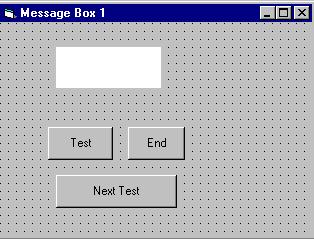
You draw three command buttons and a label as shown in Figure
i. The Interface:
You draw three command buttons and a label as shown in Figure
The procedure for the test button:
Private Sub Test_Click()
Dim testmsg As Integer
testmsg = MsgBox("Click to test", 1, "Test message")
If testmsg = 1 Then
Display.Caption = "Testing Successful"
Else
Display.Caption = "Testing fail"
End If
End Sub
MsgBox ( ) Function
MsgBox ( ) Function
The objective of MsgBox is to produce a pop-up message box and prompt the user to click on a command button before he /she can continues. This format is as follows:
yourMsg=MsgBox(Prompt, Style Value, Title)
The first argument, Prompt, will display the message in the message box. The Style Value will determine what type of command buttons appear on the message box, please refer Table 10.1 for types of command button displayed. The Title argument will display the title of the message board.
The objective of MsgBox is to produce a pop-up message box and prompt the user to click on a command button before he /she can continues. This format is as follows:
yourMsg=MsgBox(Prompt, Style Value, Title)
The first argument, Prompt, will display the message in the message box. The Style Value will determine what type of command buttons appear on the message box, please refer Table 10.1 for types of command button displayed. The Title argument will display the title of the message board.
Introduction to VB Built-in Functions
A function is similar to a normal procedure but the main purpose of the function is to accept a certain input from the user and return a value which is passed on to the main program to finish the execution. There are two types of functions, the built-in functions (or internal functions) and the functions created by the programmers.
A function is similar to a normal procedure but the main purpose of the function is to accept a certain input from the user and return a value which is passed on to the main program to finish the execution. There are two types of functions, the built-in functions (or internal functions) and the functions created by the programmers.
A function is similar to a normal procedure but the main purpose of the function is to accept a certain input from the user and return a value which is passed on to the main program to finish the execution. There are two types of functions, the built-in functions (or internal functions) and the functions created by the programmers.
Thursday, May 14, 2009
Example (a) For Loop
Example (a) For Loop
For counter=1 to 10
display.Text=counter
Next
Example (b)
For counter=1 to 1000 step 10
counter=counter+1
Next
Example (c)
For counter=1000 to 5 step -5
counter=counter-10
Next
*Notice that increment can be negative
Example (d)
Private Sub Form_Activate( )
For n=1 to 10
If n>6 then
Exit For
Else
Print n
End If
End Sub
For counter=1 to 10
display.Text=counter
Next
Example (b)
For counter=1 to 1000 step 10
counter=counter+1
Next
Example (c)
For counter=1000 to 5 step -5
counter=counter-10
Next
*Notice that increment can be negative
Example (d)
Private Sub Form_Activate( )
For n=1 to 10
If n>6 then
Exit For
Else
Print n
End If
End Sub
Program Example Use Do Loop
Program Example
Dim sum, n As Integer
Private Sub Form_Activate()
List1.AddItem "n" & vbTab & "sum"
Do
n = n + 1
Sum = Sum + n
List1.AddItem n & vbTab & Sum
If n = 100 Then
Exit Do
End If
Loop
End Sub
Dim sum, n As Integer
Private Sub Form_Activate()
List1.AddItem "n" & vbTab & "sum"
Do
n = n + 1
Sum = Sum + n
List1.AddItem n & vbTab & Sum
If n = 100 Then
Exit Do
End If
Loop
End Sub
Example Do Loop
Example Do Loop
Do while counter <=1000
num.Text=counter
counter =counter+1
Loop
* The above example will keep on adding until counter >1000.
The above example can be rewritten as
Do
num.Text=counter
counter=counter+1
Loop until counter>1000
Do while counter <=1000
num.Text=counter
counter =counter+1
Loop
* The above example will keep on adding until counter >1000.
The above example can be rewritten as
Do
num.Text=counter
counter=counter+1
Loop until counter>1000
Exiting the Loop
sometime we need exit to exit a loop prematurely because of a certain condition is fulfilled. The syntax to use is known as Exit Do. You can examine Example 9.2 for its usage.
For....Next Loop
The format is:
For counter=startNumber to endNumber (Step increment)
One or more VB statements
Next
Please refer to example 9.3a,9.3b and 9.3 c for its usage.
Sometimes the user might want to get out from the loop before the whole repetitive process is executed, the command to use is Exit For. To exit a For….Next Loop, you can place the Exit For statement within the loop; and it is normally used together with the If…..Then… statement. Let’s examine example
For....Next Loop
The format is:
For counter=startNumber to endNumber (Step increment)
One or more VB statements
Next
Please refer to example 9.3a,9.3b and 9.3 c for its usage.
Sometimes the user might want to get out from the loop before the whole repetitive process is executed, the command to use is Exit For. To exit a For….Next Loop, you can place the Exit For statement within the loop; and it is normally used together with the If…..Then… statement. Let’s examine example
Do Loop The formats are
Do Loop The formats are
a) Do While condition
Block of one or more VB statements
Loop
b) Do
Block of one or more VB statements
Loop While condition
c) Do Until condition
Block of one or more VB statements
Loop
d) Do
Block of one or more VB statements
Loop Until condition
a) Do While condition
Block of one or more VB statements
Loop
b) Do
Block of one or more VB statements
Loop While condition
c) Do Until condition
Block of one or more VB statements
Loop
d) Do
Block of one or more VB statements
Loop Until condition
Loop in Visual Basic
Visual Basic allows a procedure to be repeated many times as long as the processor until a condition or a set of conditions is fulfilled. This is generally called looping . Looping is a very useful feature of Visual Basic because it makes repetitive works easier. There are two kinds of loops in Visual Basic, the Do...Loop and the For.......Next loop
Wednesday, May 13, 2009
Example 3 could be rewritten as follows
Example 3 could be rewritten as follows:
Dim mark As Single
Private Sub Compute_Click()
'Examination Marks
mark = mrk.Text Select Case mark
Case 0 to 49 comment.Caption = "Need to work harder"
Case 50 to 59 comment.Caption = "Average"
Case 60 to 69
comment.Caption = "Above Average"
Case 70 to 84
comment.Caption = "Good"
Case Else
comment.Caption = "Excellence"
End Select
End Sub
Dim mark As Single
Private Sub Compute_Click()
'Examination Marks
mark = mrk.Text Select Case mark
Case 0 to 49 comment.Caption = "Need to work harder"
Case 50 to 59 comment.Caption = "Average"
Case 60 to 69
comment.Caption = "Above Average"
Case 70 to 84
comment.Caption = "Good"
Case Else
comment.Caption = "Excellence"
End Select
End Sub
example Select Case expression 2
Example 2
Dim mark As Single
Private Sub Compute_Click() 'Examination Marks
mark = mrk.Text Select Case mark
Case Is >= 85 comment.Caption = "Excellence"
Case Is >= 70 comment.Caption = "Good"
Case Is >= 60
comment.Caption = "Above Average"
Case Is >= 50
comment.Caption = "Average"
Case Else
comment.Caption = "Need to work harder"
End Select
End Sub
Tuesday, May 12, 2009
example Select Case expression
example 1
Dim grade As String
Private Sub Compute_Click( )
grade=txtgrade.Text
Select Case grade
Case "A" result.Caption="High Distinction"
Case "A-" result.Caption="Distinction"
Case "B" result.Caption="Credit"
Case "C" result.Caption="Pass"
Case Else result.Caption="Fail"
End Select
End Sub
Dim grade As String
Private Sub Compute_Click( )
grade=txtgrade.Text
Select Case grade
Case "A" result.Caption="High Distinction"
Case "A-" result.Caption="Distinction"
Case "B" result.Caption="Credit"
Case "C" result.Caption="Pass"
Case Else result.Caption="Fail"
End Select
End Sub
select Control Structure Select Case....End
In the previous lesson, we have learned how to control the program flow using the If...ElseIf control structure. In this chapter, you will learn another way to control the program flow, that is, the Select Case control structure. However, the Select Case control structure is slightly different from the If....ElseIf control structure . The difference is that the Select Case control structure basically only make decision on one expression or dimension (for example the examination grade) while the If ...ElseIf statement control structure may evaluate only one expression, each If....ElseIf statement may also compute entirely different dimensions. Select Case is preferred when there exist many different conditions because using If...Then..ElseIf statements might become too messy.
The format of the Select Case control structure is show below:
Select Case expression
Case value1 Block of one or more VB statements
Case value2 Block of one or more VB Statements
Case value3 . .
Case Else Block of one or more VB Statements
End Select
The format of the Select Case control structure is show below:
Select Case expression
Case value1 Block of one or more VB statements
Case value2 Block of one or more VB Statements
Case value3 . .
Case Else Block of one or more VB Statements
End Select
non-numeric Data type suffixes for literals
Non-numeric Data Types
Nonnumeric data types are data that cannot be manipulated mathematically using standard arithmetic operators. The non-numeric data comprises text or string data types, the Date data types, the Boolean data types that store only two values (true or false), Object data type and Variant data type .They are summarized in Table

Suffixes for Literals
Literals are values that you assign to data. In some cases, we need to add a suffix behind a literal so that VB can handle the calculation more accurately. For example, we can use num=1.3089# for a Double type data. Some of the suffixes are displayed in Table

In addition, we need to enclose string literals within two quotations and date and time literals within two # sign. Strings can contain any characters, including numbers. The following are few examples:
memberName="Turban, John." TelNumber="1800-900-888-777" LastDay=#31-Dec-00# ExpTime=#12:00 am#
Visual Basic Data Types Managing Visual Basic Data
There are many types of data that we come across in our daily life. For example, we need to handle data such as names, addresses, money, date, stock quotes, statistics and more everyday. Similarly in Visual Basic, we have to deal with all sorts of of data, some can be mathematically calculated while some are in the form of text or other forms. VB divides data into different types so that it is easier to manage when we need to write the code involving those data.
Visual Basic Data Types
Visual Basic classifies the information mentioned above into two major data types, they are the numeric data types and the non-numeric data types
Visual Basic classifies the information mentioned above into two major data types, they are the numeric data types and the non-numeric data types
Numeric Data Types
Numeric data types are types of data that consist of numbers, which can be computed mathematically with various standard operators such as add, minus, multiply, divide and more. Examples of numeric data types are examination marks, height, weight, the number of students in a class, share values, price of goods, monthly bills, fees and others. In Visual Basic, numeric data are divided into 7 types, depending on the range of values they can store. Calculations that only involve round figures or data that does not need precision can use Integer or Long integer in the computation. Programs that require high precision calculation need to use Single and Double decision data types, they are also called floating point numbers. For currency calculation , you can use the currency data types. Lastly, if even more precision is required to perform calculations that involve a many decimal points, we can use the decimal data types. These data types summarized in Table

Monday, May 11, 2009
Download program : Reminder with ordinary functions using vb.net
This reminder program has four forms one for updating user details 2nd for reminder details.T his is remind the date, when the use enter his user name password the reminder shows a popup.
Source Code Downloads Hear.
Source Code Downloads Hear.
Saturday, May 9, 2009
Using If.....Then.....Else Statements with Operators
To effectively control the VB program flow, we shall use If...Then...Else statement together with the conditional operators and logical operators. The general format for the if...then...else statement is
If conditions Then
VB expressions
Else
VB expressions
End If
* any If..Then..Else statement must end with End If. Sometime it is not necessary to use Else.
Example:
Private Sub OK_Click()
firstnum = Val(usernum1.Text)
secondnum = Val(usernum2.Text)
total = Val(sum.Text)
If total = firstnum + secondnum And Val(sum.Text) <> 0 Then
correct.Visible = True
wrong.Visible = False
Else correct.Visible = False
wrong.Visible = True
End If
End Sub
If conditions Then
VB expressions
Else
VB expressions
End If
* any If..Then..Else statement must end with End If. Sometime it is not necessary to use Else.
Example:
Private Sub OK_Click()
firstnum = Val(usernum1.Text)
secondnum = Val(usernum2.Text)
total = Val(sum.Text)
If total = firstnum + secondnum And Val(sum.Text) <> 0 Then
correct.Visible = True
wrong.Visible = False
Else correct.Visible = False
wrong.Visible = True
End If
End Sub
Friday, May 8, 2009
example for use Operators in Visual Basic
Dim firstName As String
Dim secondName As String
Dim yourName As String
Private Sub Command1_Click()
firstName = Text1.Text
secondName = Text2.Text
yourName = secondName + " " + firstName
Label1.Caption = yourName
End Sub
In this example, three variables are declared as string. For variables firstName and secondName will receive their data from the user’s input into textbox1 and textbox2, and the variable yourName will be assigned the data by combining the first two variables. Finally, yourName is displayed on Label1.
Dim secondName As String
Dim yourName As String
Private Sub Command1_Click()
firstName = Text1.Text
secondName = Text2.Text
yourName = secondName + " " + firstName
Label1.Caption = yourName
End Sub
In this example, three variables are declared as string. For variables firstName and secondName will receive their data from the user’s input into textbox1 and textbox2, and the variable yourName will be assigned the data by combining the first two variables. Finally, yourName is displayed on Label1.
Assigning Values to Variables
After declaring various variables using the Dim statements, we can assign values to those variables. The general format of an assignment is
Variable=Expression
The variable can be a declared variable or a control property value. The expression could be a mathematical expression, a number, a string, a Boolean value (true or false) and more. The following are some examples:
firstNumber=100
secondNumber=firstNumber-99
userName="John Lyan"
userpass.Text = password
Label1.Visible = True
Command1.Visible = false
Label4.Caption = textbox1.Text
ThirdNumber = Val(usernum1.Text)
total = firstNumber + secondNumber+ThirdNumber
Tuesday, May 5, 2009
To start writing an event procedure, you need to double-click an object. For example, if you want to write an event procedure when a user clicks a command button, you double-click on the command button and an event procedure will appear as shown in Figure 2.1. It takes the following format:
Private Sub Command1_Click
(Key in your program code here)
End Sub
You then need to key-in the procedure in the space between Private Sub Command1_Click............. End Sub. Sub actually stands for sub procedure that made up a part of all the procedures in a program. The program code is made up of a number of statements that set certain properties or trigger some actions. The syntax of Visual Basic’s program code is almost like the normal English language though not exactly the same, so it is very easy to learn.
The syntax to set the property of an object or to pass certain value to it is :
Object.Property
where Object and Property is separated by a period (or dot). For example, the statement Form1.Show means to show the form with the name Form1, Iabel1.Visible=true means label1 is set to be visible, Text1.text=”VB” is to assign the text VB to the text box with the name Text1, Text2.text=100 is to pass a value of 100 to the text box with the name text2, Timer1.Enabled=False is to disable the timer with the name Timer1 and so on. Let’s examine a few examples below:
Example 1
Private Sub Command1_click
Label1.Visible=false
Label2.Visible=True
Text1.Text=”You are correct!”
End sub
Example 2
Private Sub Command1_click
Label1.Caption=” Welcome”
Image1.visible=true
End sub
Private Sub Command1_Click
(Key in your program code here)
End Sub
You then need to key-in the procedure in the space between Private Sub Command1_Click............. End Sub. Sub actually stands for sub procedure that made up a part of all the procedures in a program. The program code is made up of a number of statements that set certain properties or trigger some actions. The syntax of Visual Basic’s program code is almost like the normal English language though not exactly the same, so it is very easy to learn.
The syntax to set the property of an object or to pass certain value to it is :
Object.Property
where Object and Property is separated by a period (or dot). For example, the statement Form1.Show means to show the form with the name Form1, Iabel1.Visible=true means label1 is set to be visible, Text1.text=”VB” is to assign the text VB to the text box with the name Text1, Text2.text=100 is to pass a value of 100 to the text box with the name text2, Timer1.Enabled=False is to disable the timer with the name Timer1 and so on. Let’s examine a few examples below:
Example 1
Private Sub Command1_click
Label1.Visible=false
Label2.Visible=True
Text1.Text=”You are correct!”
End sub
Example 2
Private Sub Command1_click
Label1.Caption=” Welcome”
Image1.visible=true
End sub
Steps in Building a Visual Basic Application
Step 1 : Design the interface
Step 2 : Set properties of the controls (Objects)
Step 3 : Write the event procedures
Example
List of Objects
Step 2 : Set properties of the controls (Objects)
Step 3 : Write the event procedures
Example
List of Objects
List of Procedures
example Source code
Private Sub Form_Load ( )
Form1.show
Print “Welcome to Visual Basic tutorial”
End Sub
Monday, May 4, 2009
Creating Your First Application in VB 6
Creating Your First Application
In this section, we will not go into the technical aspects of Visual Basic programming yet, what you need to do is just try out the examples below to see how does in VB program look like:
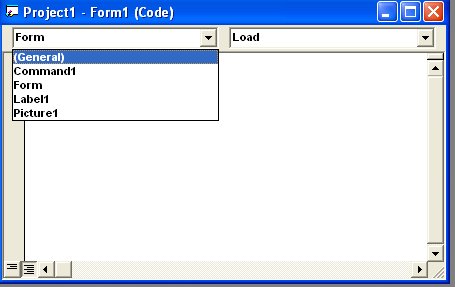
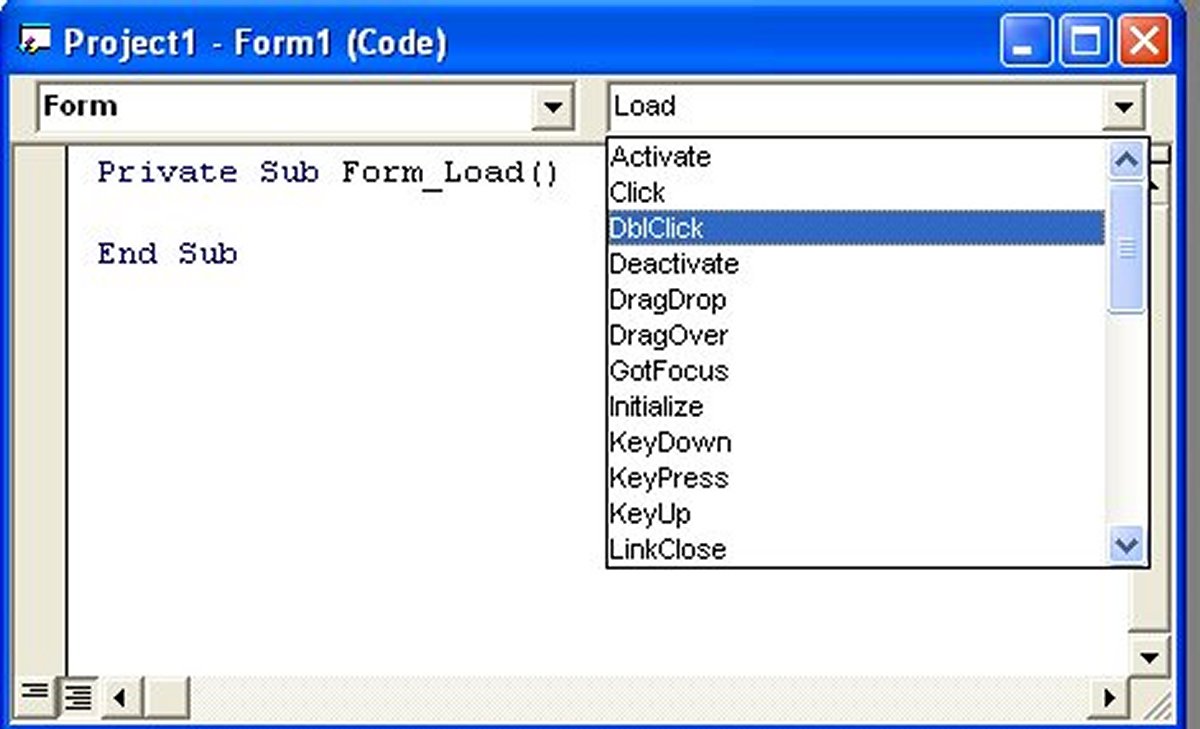
Example 2.1.1 is a simple program. First of all, you have to launch Microsoft Visual Basic 6. Normally, a default form with the name Form1 will be available for you to start your new project. Now, double click on Form1, the source code window for Form1 as shown in figure 2.1 will appear. The top of the source code window consists of a list of objects and their associated events or procedures. In figure 2.1, the object displayed is Form and the associated procedure is Load.
In this section, we will not go into the technical aspects of Visual Basic programming yet, what you need to do is just try out the examples below to see how does in VB program look like:
Example 2.1.1 is a simple program. First of all, you have to launch Microsoft Visual Basic 6. Normally, a default form with the name Form1 will be available for you to start your new project. Now, double click on Form1, the source code window for Form1 as shown in figure 2.1 will appear. The top of the source code window consists of a list of objects and their associated events or procedures. In figure 2.1, the object displayed is Form and the associated procedure is Load.

When you click on the object box, the drop-down list will display a list of objects you have inserted into your form as shown in figure 2.2. Here, you can see a form with the name Form1, a command button with the name Command1, a Label with the name Label1 and a Picture Box with the name Picture1. Similarly, when you click on the procedure box, a list of procedures associated with the object will be displayed as shown in figure 2.3. Some of the procedures associated with the object Form1 are Activate, Click, DblClick (which means Double-Click) , DragDrop, keyPress and more. Each object has its own set of procedures. You can always select an object and write codes for any of its procedure in order to perform certain tasks.
You do not have to worry about the beginning and the end statements (i.e. Private Sub Form_Load.......End Sub.); Just key in the lines in between the above two statements exactly as are shown here. When you press F5 to run the program, you will be surprise that nothing shown up .In order to display the output of the program, you have to add the Form1.show statement like in Example 2.1.1 or you can just use Form_Activate ( ) event procedure as shown in example 2.1.2. The command Print does not mean printing using a printer but it means displaying the output on the computer screen. Now, press F5 or click on the run button to run the program and you will get the output as shown in figure 2.4.
You can also perform arithmetic calculations as shown in example 2.1.2. VB uses * to denote the multiplication operator and / to denote the division operator. The output is shown in figure 2.3, where the results are arranged vertically.
Sunday, May 3, 2009
The Combo Box
The Combo Box
The function of the Combo Box is also to present a list of items where the user can click and select the items from the list. However, the user needs to click on the small arrowhead on the right of the combo box to see the items which are presented in a drop-down list. In order to add items to the list, you can also use the AddItem method. For example, if you wish to add a number of items to Combo box 1, you can key in the following statements
Example 3.3
Private Sub Form_Load ( )
Combo1.AddItem “Item1”
Combo1.AddItem “Item2”
Combo1.AddItem “Item3”
Combo1.AddItem “Item4”
End Sub
The function of the Combo Box is also to present a list of items where the user can click and select the items from the list. However, the user needs to click on the small arrowhead on the right of the combo box to see the items which are presented in a drop-down list. In order to add items to the list, you can also use the AddItem method. For example, if you wish to add a number of items to Combo box 1, you can key in the following statements
Example 3.3
Private Sub Form_Load ( )
Combo1.AddItem “Item1”
Combo1.AddItem “Item2”
Combo1.AddItem “Item3”
Combo1.AddItem “Item4”
End Sub
The List Box
The List Box
The function of the List Box is to present a list of items where the user can click and select the items from the list. In order to add items to the list, we can use the AddItem method. For example, if you wish to add a number of items to list box 1, you can key in the following statements
Example 3.2
Private Sub Form_Load ( )
List1.AddItem “Lesson1”
List1.AddItem “Lesson2”
List1.AddItem “Lesson3”
List1.AddItem “Lesson4”
End Sub
The items in the list box can be identified by the ListIndex property, the value of the ListIndex for the first item is 0, the second item has a ListIndex 1, and the second item has a ListIndex 2 and so on
The function of the List Box is to present a list of items where the user can click and select the items from the list. In order to add items to the list, we can use the AddItem method. For example, if you wish to add a number of items to list box 1, you can key in the following statements
Example 3.2
Private Sub Form_Load ( )
List1.AddItem “Lesson1”
List1.AddItem “Lesson2”
List1.AddItem “Lesson3”
List1.AddItem “Lesson4”
End Sub
The items in the list box can be identified by the ListIndex property, the value of the ListIndex for the first item is 0, the second item has a ListIndex 1, and the second item has a ListIndex 2 and so on
The Picture Box
The Picture Box
The Picture Box is one of the controls that is used to handle graphics. You can load a picture at design phase by clicking on the picture item in the properties window and select the picture from the selected folder. You can also load the picture at runtime using the LoadPicture method. For example, the statement will load the picture grape.gif into the picture box.
Picture1.Picture=LoadPicture ("C:\VB program\Images\grape.gif")
You will learn more about the picture box in future lessons. The image in the picture box is not resizable.
Command Button and Label
The Label
The label is a very useful control for Visual Basic, as it is not only used to provide instructions and guides to the users, it can also be used to display outputs. One of its most important properties is Caption. Using the syntax label.Caption, it can display text and numeric data . You can change its caption in the properties window and also at runtime. Please refer to Example 3.1 and Figure 3.1 for the usage of label.
The Command Button
The command button is one of the most important controls as it is used to execute commands. It displays an illusion that the button is pressed when the user click on it. The most common event associated with the command button is the Click event, and the syntax for the procedure is
Private Sub Command1_Click ()
Statements
End Sub
The label is a very useful control for Visual Basic, as it is not only used to provide instructions and guides to the users, it can also be used to display outputs. One of its most important properties is Caption. Using the syntax label.Caption, it can display text and numeric data . You can change its caption in the properties window and also at runtime. Please refer to Example 3.1 and Figure 3.1 for the usage of label.
The Command Button
The command button is one of the most important controls as it is used to execute commands. It displays an illusion that the button is pressed when the user click on it. The most common event associated with the command button is the Click event, and the syntax for the procedure is
Private Sub Command1_Click ()
Statements
End Sub
Saturday, May 2, 2009
k1vbcode : The Text Box
Handling some of the common controls
3.2.1 The Text Box
The text box is the standard control for accepting input from the user as well as to display the output. It can handle string (text) and numeric data but not images or pictures. String in a text box can be converted to a numeric data by using the function Val(text). The following example illustrates a simple program that processes the input from the user.
Example 3.1
In this program, two text boxes are inserted into the form together with a few labels. The two text boxes are used to accept inputs from the user and one of the labels will be used to display the sum of two numbers that are entered into the two text boxes. Besides, a command button is also programmed to calculate the sum of the two numbers using the plus operator. The program use creates a variable sum to accept the summation of values from text box 1 and text box 2.The procedure to calculate and to display the output on the label is shown below. The output is shown in Figure 3.2
Private Sub Command1_Click()
‘To add the values in text box 1 and text box 2
Sum = Val(Text1.Text) + Val(Text2.Text)
‘To display the answer on label 1
Label1.Caption = Sum
End Sub

3.2.1 The Text Box
The text box is the standard control for accepting input from the user as well as to display the output. It can handle string (text) and numeric data but not images or pictures. String in a text box can be converted to a numeric data by using the function Val(text). The following example illustrates a simple program that processes the input from the user.
Example 3.1
In this program, two text boxes are inserted into the form together with a few labels. The two text boxes are used to accept inputs from the user and one of the labels will be used to display the sum of two numbers that are entered into the two text boxes. Besides, a command button is also programmed to calculate the sum of the two numbers using the plus operator. The program use creates a variable sum to accept the summation of values from text box 1 and text box 2.The procedure to calculate and to display the output on the label is shown below. The output is shown in Figure 3.2
Private Sub Command1_Click()
‘To add the values in text box 1 and text box 2
Sum = Val(Text1.Text) + Val(Text2.Text)
‘To display the answer on label 1
Label1.Caption = Sum
End Sub
The Control Properties

The Control Properties
Before writing an event procedure for the control to response to a user's input, you have to set certain properties for the control to determine its appearance and how it will work with the event procedure. You can set the properties of the controls in the properties window or at runtime.
Before writing an event procedure for the control to response to a user's input, you have to set certain properties for the control to determine its appearance and how it will work with the event procedure. You can set the properties of the controls in the properties window or at runtime.
Figure 3.1 on the right is a typical properties window for a form. You can rename the form caption to any name that you like best. In the properties window, the item appears at the top part is the object currently selected (in Figure 3.1, the object selected is Form1). At the bottom part, the items listed in the left column represent the names of various properties associated with the selected object while the items listed in the right column represent the states of the properties. Properties can be set by highlighting the items in the right column then change them by typing or selecting the options available.
For example, in order to change the caption, just highlight Form1 under the name Caption and change it to other names. You may also try to alter the appearance of the form by setting it to 3D or flat. Other things you can do are to change its foreground and background color, change the font type and font size, enable or disable minimize and maximize buttons and etc.
You can also change the properties at runtime to give special effects such as change of color, shape, animation effect and so on. For example the following code will change the form color to red every time the form is loaded. VB uses hexadecimal system to represent the color. You can check the color codes in the properties windows which are showed up under ForeColor and BackColor .
Private Sub Form_Load()
Form1.ShowForm1.BackColor = &H000000FF&
End Sub
Another example is to change the control Shape to a particular shape at runtime by writing the following code. This code will change the shape to a circle at runtime. Later you will learn how to change the shapes randomly by using the RND function.
Private Sub Form_Load()
Shape1.Shape = 3
End Sub
I would like to stress that knowing how and when to set the objects' properties is very important as it can help you to write a good program or you may fail to write a good program. So, I advice you to spend a lot of time playing with the objects' properties.I am not going into the details on how to set the properties. However, I would like to stress a few important points about setting up the properties.
You should set the Caption Property of a control clearly so that a user knows what to do with that command. For example, in the calculator program, all the captions of the command buttons such as +, - , MC, MR are commonly found in an ordinary calculator, a user should have no problem in manipulating the buttons.
A lot of programmers like to use a meaningful name for the Name Property may be because it is easier for them to write and read the event procedure and easier to debug or modify the programs later. However, it is not a must to do that as long as you label your objects clearly and use comments in the program whenever you feel necessary. T
One more important property is whether the control is enabled or not.
Finally, you must also considering making the control visible or invisible at runtime, or when should it become visible or invisible.
Subscribe to:
Posts (Atom)