The Common Dialog control not an intrinsic control; rather, it is an "Active X" control that must be added to the toolbox via the Components dialog box, as shown below. This dialog box is accessed via the Project menu, Components item. Once you check "Microsoft Common Dialog Control 6.0" and click OK, the control is added to your toolbox (also shown below, circled). Then you can double-click it to make it appear on your form, as you would with any other control. The Common Dialog control is not visible at run-time.
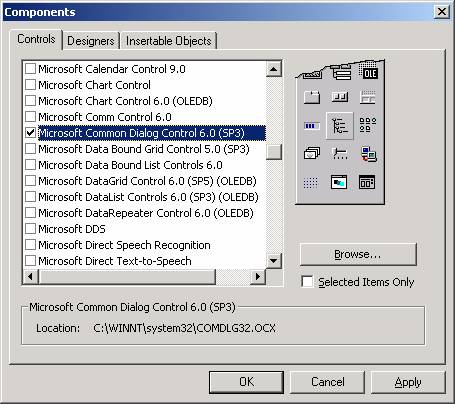

Certain functionality for the dialog boxes is provided automatically by VB and Windows, but other functionality must be coded. For example, with the Open and Save dialog boxes, the functionality to navigate to different drives and directories is built in, but the functionality to actually save or open a file must be coded in your program.
The sample program for this topic will be presented shortly, but first, two properties of the Common Dialog control, Flags and CancelError, will be discussed briefly.
The Flags Property
The appearance and behavior of the dialog boxes can be modified to some degree with the Flags property of the Common Dialog control. Wherever possible, you should use the Flags property to control the appearance of the dialog box in question such that you only present features to the user that your application supports. Examples follow.
(1) Shown below is a screen shot of the Open Common Dialog Box. Note that the item "Open as read only" is circled. You can use the Flags property to suppress this item (you should only show it if your application will let the user decide whether or not to open the file as read-only).

2) Shown below is a screen shot of the Print Common Dialog Box. Note that the circled items in the "Page Range" area (for printing a selection or a specific page range) are grayed out. These items were disabled via Flags property settings. You should only enable such options if your program contains the logic to act on them.

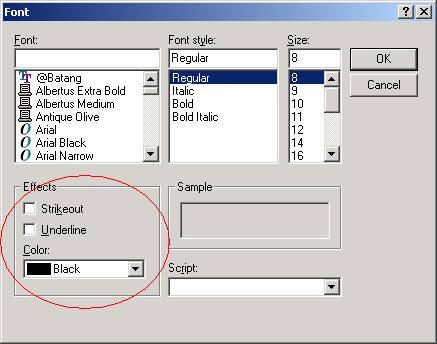
(3) Shown below is a screen shot of the Font Common Dialog Box. The Flags property can control whether or not the "Effects" area (circled) is displayed
The CancelError Property
In order to test whether or not the user clicked the Cancel button on a Common Dialog box, you must set up special error-handling logic. If you don't, VB will treat the clicking of the Cancel button as an unhandled error and will thus cause your program to end abruptly (this will not exactly endear you to your users).
You can test to see whether or not the user clicked the Cancel button by setting the CancelError property to True – this causes an error routine you have written (using the "On Error Goto label technique) to be executed when the user clicks Cancel.
The basic structure of a VB procedure that displays a Common Dialog box should be as follows:
Private Sub WHATEVER()
DECLARE LOCAL VARIABLES
ON ERROR GOTO CANCELERROR_ROUTINE
SET CancelError PROPERTY TO TRUE (e.g., CommonDialog1.CancelError = True)
SET Flags AND OTHER PROPERTIES TO APPROPRIATE VALUES
SHOW THE COMMON DIALOG (e.g., CommonDialog1.ShowSave)
' When you show the common dialog box, processing is suspending until the
' user performs an action. If they click the Cancel button, VB will jump
' to the error-handling routine you set up (i.e., CANCELERROR_ROUTINE).
' Assuming the user did not click Cancel, continue processing below ...
' Now that the dialog box is done being shown, we can put a "normal" error-
' handling routine in place, if desired ...
On Error GoTo NORMAL_ERROR_ROUTINE
NORMAL PROCESSING HERE
' Exit here so that you don't fall through to the error-handling logic
Exit Sub
NORMAL_ERROR_ROUTINE:
MsgBox "Err # " & Err.Number & " - " & Err.Description, vbCritical, "Error"
Exit Sub
CANCELERROR_ROUTINE:
' Do nothing, no problem if user clicks Cancel button ...
End Sub
COMMON DIALOG DEMO PROGRAM
The Common Dialog demo program shows how to use each of the six types of dialog boxes. The design-time form is shown below, with the names and property settings for each control on the form, as well as for the form itself, shown in callouts.

more detail Click this link
http://www.vb6.us/tutorials/common-dialogs-vb-tutorial

No comments:
Post a Comment